 Free Internet Speed Test for Uganda Check Your Download, Upload, Ping and Jitter Instantly
Multi opens several parallel connections (closer to real-world browsing/streaming). Single uses one connection (shows the ceiling of a single stream/download).
Press GO to start your free speed test.
Your Network Details
Approximate location based on your public IP address not your precise GPS position.
Your Test History
| Time | Download (Mbps) | Upload (Mbps) | Ping (ms) | Jitter (ms) |
|---|
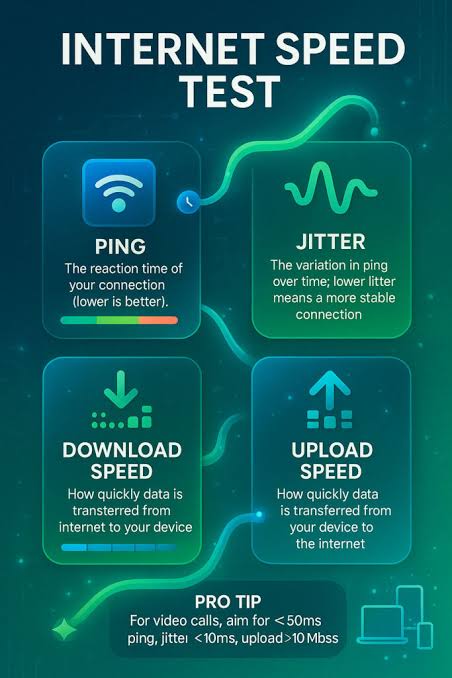
Whether you're on MTN, Airtel, Roke, Africell, or a fibre connection at home, this free internet speed test tells you exactly how fast your connection really is, right now, right in your browser.
Key Takeaways
- Internet connections in Uganda vary enormously depending on where you live, which network you use, and even the time of day.
- This tool runs a series of small, precisely timed data transfers between your browser and nearby test servers, then calculates your speed from how quickly that data moves.
- Once your test finishes, you'll see four key numbers, and understanding what each one means helps you judge whether your connection is actually good enough for what you need.
- Uganda's internet landscape has changed dramatically over the past decade, with fibre backbone expansion and growing 4G coverage pushing average speeds up significantly, though there's still a wide gap between urban and rural experiences.
- Uganda's connectivity market includes fixed fibre and wireless broadband providers alongside the two dominant mobile network operators, and each serves a different need.
- For many people in Uganda, the choice isn't really a choice, it's whatever infrastructure reaches their home or office, but where both options exist, it's worth understanding the trade-offs.
- If your results are lower than expected, there are several practical steps that often make a real difference before you assume your ISP is at fault.
- When your speed test consistently comes back low, work through the possibilities systematically rather than guessing.
Why Run an Internet Speed Test in Uganda
Internet connections in Uganda vary enormously depending on where you live, which network you use, and even the time of day.
Someone in Kololo on a fibre plan might get 40 Mbps consistently, while someone in Gulu on mobile data might see speeds swing between 3 Mbps and 15 Mbps depending on network load.
Running a speed test gives you a concrete, real-time reading of your actual internet speed, rather than relying on what your ISP advertised when you signed up.
This matters because advertised speeds are usually best-case numbers achieved under ideal conditions, not what you'll typically experience on a Tuesday evening when half your estate is streaming Premier League football.
A speed test is also the fastest way to settle a simple question: is the problem my WiFi, my ISP, or my device?
If your speed test shows a strong result but apps still feel slow, the issue is likely local too many background downloads, an overloaded router, or a weak WiFi signal in that particular room.
If the speed test itself comes back low, you know the bottleneck is upstream, either with your ISP or the wider network.
For freelancers, students doing online coursework, remote workers on video calls, and small business owners running M-Pesa-style mobile money services or POS systems, knowing your real speed isn't a luxury, it's essential for troubleshooting and for holding your provider accountable to what you're paying for.
How This Speed Test Actually Works
This tool runs a series of small, precisely timed data transfers between your browser and nearby test servers, then calculates your speed from how quickly that data moves.
It starts with a ping test: your device sends a tiny packet to the server and measures how long the round trip takes, in milliseconds.
This is repeated several times in quick succession, and the variation between those individual ping times is your jitter, a measure of how stable your connection's timing is.
Next comes the download test, where the tool opens multiple simultaneous connections and streams data from the server to your device, measuring the total data received over a fixed window of time to calculate your download speed in Mbps (megabits per second).
The upload test works in reverse, sending data from your browser back to the server to measure how fast you can push data out, which matters for video calls, uploading photos or documents, and cloud backups.
Throughout the test, animated charts update in real time so you can watch your speed ramp up, stabilize, or fluctuate as the measurement progresses, rather than just staring at a blank screen waiting for a final number.
The entire process typically completes in 15 to 25 seconds and runs entirely inside your browser using standard web technology, no downloads, no browser extensions, no signup form.
Alongside your results, the tool also detects and displays your ISP name and an approximate location based on your IP address, so you have full context for the numbers you're seeing.
How to Read Your Mbps, Ping, and Jitter Results
Once your test finishes, you'll see four key numbers, and understanding what each one means helps you judge whether your connection is actually good enough for what you need.
Download speed, measured in Mbps, tells you how fast data comes from the internet to your device, which governs how quickly web pages load, videos buffer, and files download.
Upload speed measures the reverse direction and directly affects video call quality, how fast you can send large WhatsApp files, and how smoothly you can livestream or back up photos to the cloud.
Ping, measured in milliseconds, is your connection's reaction time, how long it takes for a signal to reach a server and come back.
Lower is better: under 30ms is excellent and great for gaming or video calls, 30-60ms is generally fine for most everyday use, and anything above 100ms will start to feel sluggish in real-time applications like video calls or online games, even if your Mbps numbers look healthy.
Jitter, also in milliseconds, measures how consistent your ping is over time.
A connection with low jitter (under 10ms) feels smooth and predictable, while high jitter causes choppy video calls, dropped voice audio, and stuttering even when your average speed is decent, because the connection keeps speeding up and slowing down unpredictably.
It's worth remembering that Mbps and MBps are different: your ISP sells you speed in megabits per second (Mbps), but file download managers often display megabytes per second (MBps), which is roughly one-eighth the number. A 20 Mbps connection downloads at around 2.
5 MB per second, not 20 MB per second, and that confusion causes a lot of unnecessary complaints about 'slow' internet that's actually working exactly as sold.
Typical Internet Speeds and Connectivity in Uganda
Uganda's internet landscape has changed dramatically over the past decade, with fibre backbone expansion and growing 4G coverage pushing average speeds up significantly, though there's still a wide gap between urban and rural experiences.
In Kampala and other major towns like Entebbe, Jinja, and Mbarara, fibre-to-the-home plans from providers can deliver 20 to 100 Mbps or more at relatively affordable monthly rates, and 4G mobile coverage from MTN Uganda and Airtel Uganda is strong enough to regularly deliver 10 to 30 Mbps on a good signal.
Outside the main urban centres, particularly in northern and eastern Uganda, connectivity leans more heavily on mobile networks, and speeds can be noticeably lower and less consistent, with 3G still filling gaps where 4G towers haven't reached.
Uganda's average mobile and fixed broadband speeds have been climbing year over year as operators invest in network capacity, but congestion during peak hours (typically 7pm to 11pm, when people are home from work and school) remains a common frustration nationwide, especially on shared mobile towers in dense residential areas.
Data costs also shape usage patterns here in a way that's different from markets with unlimited plans: many users are conscious of bundle sizes, which is part of why knowing your actual speed matters, so you can choose bundle sizes and plans that actually match what your connection can deliver rather than overpaying for speed you can't use or under-buying data for the speed you have.
Comparing ISPs and Networks in Uganda
Uganda's connectivity market includes fixed fibre and wireless broadband providers alongside the two dominant mobile network operators, and each serves a different need.
MTN Uganda and Airtel Uganda both offer 4G mobile data that covers the majority of populated areas and is often the fastest way to get online in places without fibre infrastructure, with pricing built around daily, weekly, and monthly data bundles.
For fixed connections, providers offering fibre and wireless broadband to homes and offices in Kampala and other urban centres generally deliver more stable speeds and lower jitter than mobile data, because the connection isn't sharing capacity with as many nearby mobile users on the same tower.
When comparing ISPs, don't just look at the advertised top speed, run the same speed test on each network at the same time of day and location if possible, since a fair comparison accounts for local conditions rather than marketing numbers.
Pay attention to consistency over a few days, not just a single test: an ISP that delivers a steady 15 Mbps around the clock is often more useful day-to-day than one that peaks at 50 Mbps at 3am but drops to 5 Mbps during evening peak hours.
Also compare ping and jitter, not just download speed, particularly if you rely on video calls for work or study, since a mobile connection with great download speed but high jitter can still make Zoom or Google Meet calls frustrating and unreliable.
Mobile Data vs Fixed Broadband: Which Should You Use
For many people in Uganda, the choice isn't really a choice, it's whatever infrastructure reaches their home or office, but where both options exist, it's worth understanding the trade-offs.
Mobile data through MTN or Airtel offers flexibility, no installation wait, no fixed monthly contract, and the ability to top up exactly when you need it, which suits students, small traders, and anyone who moves between locations frequently.
However, mobile networks share capacity across everyone connected to the same tower, so speeds can dip noticeably during peak hours or in crowded areas, and signal strength depends heavily on your exact location, even a different room in the same house can show a different result.
Fixed fibre or wireless broadband, where available, typically offers more consistent speeds since your connection isn't competing with as many other users, lower ping and jitter which matters for video calls and gaming, and often better value per Mbps if you use a lot of data monthly for streaming, downloads, or a household with multiple people online simultaneously.
The practical answer for many Ugandan households and small businesses is to use both: a fixed connection as the primary line for the home or office, with mobile data as a reliable backup during outages or for use away from home.
If you're deciding between them, run this speed test on each option at the times you actually use the internet most, whether that's early morning, midday, or evening, since that's the real-world performance that matters, not a single best-case reading.
Tips to Improve Your Speed Test Results
If your results are lower than expected, there are several practical steps that often make a real difference before you assume your ISP is at fault.
Start by moving closer to your WiFi router or, better yet, connecting your device directly via an ethernet cable if it's a laptop or desktop, since WiFi signal degrades with distance, walls, and interference from other electronic devices and neighbouring WiFi networks, which is extremely common in denser apartment blocks and estates.
Close background apps and browser tabs that might be silently using bandwidth, such as auto-updating apps, cloud backup tools, or streaming services left running in another tab, since these compete with your speed test for the same connection.
Check how many devices are connected to your WiFi at the same time, phones, smart TVs, laptops, and IoT devices all draw from the same shared bandwidth, and a household with many connected devices during the test will see lower per-device results.
Restart your router occasionally, as routers that have been running for weeks without a reboot can develop performance issues that a simple restart resolves.
If you're on mobile data, check your signal bars and consider moving near a window or higher ground if you're indoors, since concrete walls and roofing materials common in Ugandan construction can meaningfully weaken 4G signal strength.
Finally, test at different times of day: if your midday speed is great but evening speed craters, that's a sign of peak-hour network congestion rather than a fundamental connection problem, and it's useful information to have when discussing your plan with your provider.
Troubleshooting a Slow or Unstable Connection
When your speed test consistently comes back low, work through the possibilities systematically rather than guessing.
First, rule out your own network by testing multiple devices, if only one device is slow, the problem is that device's WiFi adapter, drivers, or a background process, not your internet connection itself.
Next, check whether the slowdown is constant or only happens at certain times, since a connection that's fine at 9am but crawls at 8pm points to network congestion during peak usage hours, which is common across Uganda's mobile networks and even some fixed providers in dense residential areas.
If you're on mobile data, check whether you've exhausted a data bundle and been throttled to a slower speed, as many Ugandan mobile plans reduce speed significantly once you cross a data threshold rather than cutting you off completely, which can look like a mysteriously slow connection if you don't check your bundle balance.
Weather can also be a factor for some wireless and satellite-based connections, heavy rain, common in Uganda's wet seasons, can interfere with certain wireless broadband and satellite links.
If none of these explain it, contact your ISP with your speed test results in hand, including the time and date of multiple tests, since specific numbers help their support team diagnose the issue faster than a general complaint about slow internet.
Persistent problems despite a strong signal and no obvious cause may indicate a fault with your router, an outdated firmware version, or in rare cases, physical damage to fibre or cabling infrastructure in your area, which your ISP can check on their end.
Speed Test on WiFi vs Speed Test on Data: What to Expect
Running a speed test on WiFi versus running one on mobile data will often produce noticeably different results, and understanding why helps you interpret them correctly.
A WiFi speed test measures the combined performance of your fixed internet connection (fibre or wireless broadband coming into your home) and your local WiFi network, so a weak router placement or an old WiFi standard can drag down results even if the incoming connection itself is fast.
A mobile data speed test, by contrast, measures your phone's direct connection to the mobile tower, which depends on signal strength, tower congestion, and your distance from the nearest mast, factors that can change simply by walking from one room to another.
If you want to isolate whether a slow result is a router problem or an ISP problem, run the WiFi speed test standing right next to the router, then run it again from wherever you normally sit; a big drop between the two locations points to a WiFi coverage issue rather than a problem with your actual internet plan.
It's also worth testing WiFi speed on both 2. 4GHz and 5GHz bands if your router supports both, since 5GHz offers faster speeds at shorter range while 2.
4GHz travels further through walls but tops out at lower speeds, and many routers automatically choose one without telling you which.
For most everyday use in Uganda, where many households mix fixed broadband with mobile data as backup, periodically testing both gives you a genuinely useful picture of which connection to rely on for which task, video calls on the more stable one, quick browsing on whichever is more convenient in the moment.
Why No App, No Signup, and Real-Time Charts Matter
This tool is built to remove every unnecessary barrier between you and an accurate result.
There's no app to download and no storage space taken up on a phone that might already be tight on space, no account to create, no email address required, and no personal information collected just to check your speed.
That matters practically in Uganda, where mobile data isn't free and downloading a multi-megabyte app just to run a test that itself uses data feels backwards, especially for something you might only need occasionally.
Everything runs directly in your mobile or desktop browser, works on Android, iPhone, and any modern computer, and gives you a result in under half a minute.
The animated real-time charts aren't just decoration, they let you actually watch the shape of your connection's performance as the test runs: a connection that ramps up quickly and holds steady behaves very differently from one that spikes briefly and then drops, even if both end up with a similar final average, and that pattern can be a useful clue when troubleshooting.
Because the test also detects and shows your ISP and approximate location automatically, you get useful context without having to type anything in, which is especially handy if you're testing on behalf of someone else, checking a connection at a shop or office, or simply want a quick record of what network and location a given result came from.
Making the Most of Your Speed Test Habit
A single speed test gives you a snapshot, but running it regularly turns that snapshot into genuinely useful data about your connection over time.
Consider testing at a few consistent points during the day, morning, midday, and evening, for about a week when you first move into a new home, switch ISPs, or upgrade your plan, so you build a realistic picture of what to expect rather than judging your connection off one lucky or unlucky reading.
Keep a rough note of results when you contact your ISP about performance issues, since concrete numbers over multiple days carry far more weight in a support conversation than 'my internet feels slow.
' If you're choosing between two ISPs or two plans, ask around and, if possible, test on the same network from a friend or colleague's connection nearby, real numbers from real conditions in your neighbourhood will tell you more than any advertised maximum speed.
For businesses in Uganda that depend on stable connectivity, whether that's a cyber café, a small office running cloud-based accounting software, or a shop processing mobile money transactions, periodic speed checks are a simple, free way to catch a degrading connection before it becomes a serious operational problem, giving you time to raise it with your provider or consider a backup connection before it costs you business.
Frequently Asked Questions
How do I test my internet speed in Uganda for free?
Just open the speed test page on your phone or computer and tap Start. The tool runs entirely in your browser, needs no app install or signup, and shows your download speed, upload speed, ping, and jitter within about 15-20 seconds using servers close to Uganda.
What is a good internet speed in Uganda?
For everyday browsing and WhatsApp, 5-10 Mbps download is fine. For HD streaming or video calls, aim for 15-25 Mbps. Households with several people streaming or gaming should target 50 Mbps or more. Upload of 5-10 Mbps is enough for most video calls.
Why is my WiFi speed test result lower than what my ISP promised?
ISPs advertise the speed at the router, not what reaches your device. WiFi signal loss, distance from the router, network congestion at peak hours, or too many connected devices can all reduce your actual measured speed. Test on ethernet to see your true line speed.
Does the speed test use a lot of mobile data?
A single test typically uses between 20MB and 100MB of data, depending on your connection speed, since faster connections transfer more data during the timed measurement. If you're on a tight mobile bundle, keep this in mind before testing repeatedly.
Which is faster in Uganda, mobile data or fixed broadband?
It depends on location. In areas with good 4G coverage, mobile data from MTN or Airtel can rival entry-level fixed broadband, sometimes 10-30 Mbps. However, fixed fibre broadband is more stable, has lower ping, and doesn't slow down as much during peak evening hours.
What causes high ping or jitter on Ugandan connections?
High ping is often caused by satellite or long-distance routing, network congestion, or an overloaded router. Jitter usually comes from unstable WiFi, too many active devices, or inconsistent mobile signal strength, which is common when moving around indoors.
Can I run a speed test on my phone using mobile data?
Yes. The tool works on any modern mobile browser on Android or iPhone, over WiFi or mobile data (3G, 4G, or 5G where available). There's nothing to download; the test loads instantly and adapts to your device's screen.
Why does my speed test result change every time I run it?
Internet speed fluctuates because of network congestion, how many people are online in your area, weather affecting some wireless links, and even which server your device connects to. Run the test at different times of day for a realistic average.